Deploy a sentence transformer model on AWS Lambda via Docker
Today, let's dive into the beautiful (and sometimes very painful) world of deployment.
This is really when things start to be very exciting as a you generally go from a model in a notebook to a product/service that can be delivered to users :) . At the same time a lot of things can go wrong during the process, so it's really important to be organized and to stay focused !
We are going to deploy a sentence transformer model on AWS lambda via Docker. This post covers most of the needs but won't dive too much into advanced details otherwise it won't be a blog post anymore but a full deployment course.
Prerequisites
To follow this tutorial, you should:
- have Docker installed and know the basics.
- have an AWS account
- have AWS-CLI installed
- know the basic bash commands
- be familiar with Python
- be familiar with Python virtual environments
Yes, you should know quite a lot of things already, uh ? :)
Link to the Github repo
You can find all the files used in this blog post on my Github repo
Few words about Lambda
To briefly introduce AWS Lambda, it is a compute service that lets you run code without provisioning or managing servers. In other words you provide the code and AWS takes care of the rest.
Lambda can be used without Docker but AWS let you package and deploy Lambda functions as container images of up to 10GB in size ! This is very useful when dealing with sentence transformers because they can be very heavy !
I highly recommand you to create a new python environments each time you are working on a new project.
A virtual environment is a tool that helps to keep dependencies required by different projects separate by creating isolated python virtual environments for them.
The most critical thing is perhaps to keep track of the versions of the different packages used. Let say you don't work with virtual environments, you built your app A with pytorch version x, then you are working on another app B that requires pytorch version y, you go back to app A Using pytorch version y, this can make the whole app crash or even worse, it may continue to work but with differences in the outputs which makes the debbuging very difficult.
Every single thing that can reduce head scratching in deployment is very welcome.
create an environment with python 3.7 using the terminal :
python3.7 -m venv <name_of_your_env>
or
python3.7 -m virtualenv <name_of_your_env>
once created you can activate the environnment like so:
source <name_of_your_env>/bin/activate
later on, if you need to deactivate your environment, you can use the following command:
deactivate
You can try a lot of different models provided by HuggingFace, you have to find the best compromise between model size and performances for your use case. Note that some of the models are multilingual some are not, I highly recommand you to read the documentation of each model before using it.
For the sake of simplicity I will be using one of the tiniest model : all-MiniLM-L6-v2, it weights 80 Mb.
One you chose your model, you can quickly use it, it's very simple. Just install the sentence transformers library like so :
pip install -U sentence-transformersand then
from sentence_transformers import SentenceTransformer

# The first time you run this line, it will download and install the chosen model.
model = SentenceTransformer('all-MiniLM-L6-v2')

sentences = ['This framework generates embeddings for each input sentence',
    'Sentences are passed as a list of string.',
    'The quick brown fox jumps over the lazy dog.']

sentence = 'This is my input sentence'

# Sentences are encoded by calling model.encode()
embeddings = model.encode(sentences)
# See how the model can also take as input a text rather than a list of texts.
embedding = model.encode(sentence)

print(embeddings.shape)
print(embedding.shape)

#>>> (3, 384)
#>>> (384,)
The output embeddings is a numpy array of shape (3, 384). The first element of the shape 3 refers to the number of sentences in the input list. Then each sentence is being vectorized by the model in a space of 384 dimensions, which is why the second element of the shape is 384.
In the same fashion, embedding is a numpy array of shape (384,). There's only one element in the tuple as the input is a string, not a list of strings. It would have had a shape of (1, 384) if the input was wrapped in a list.
The key takeways here are :
- The first time you use a model, it will automatically be downloaded (we have to keep this in mind for the deployment)
- The input for the model can be a text or a list of texts, depending on this, the output's shape will be different.
Now that you've carefully chosen the model that better suits your use case, let's make a simple app.
The core module is generally named app.py. Inside this module, the core function is conventionally named lambda_handler, this is the function that will be used by AWS Lambda. This very function has some constraints to satisfy. Indeed, it must have two arguments event and context, we don't have to worry too much about context however event is where the input should be located. event has to be a dictionnary, this is mandatory because of the way Lambda functions work (they expect a JSON as input and return a JSON as output).
A part from that, there's no particular constraints to point out, at least for now. :)
In our case we design a very simple input of the following form:
event = {"my_input": "my input sentence..."}# app.py file
from sentence_transformers import SentenceTransformer
model_name = 'all-MiniLM-L6-v2'
model = SentenceTransformer(model_name)
def my_app(my_input):
"""Simple app that tranforms text(s) into vector(s) using a sentence transformer model"""
output = model.encode(my_input)
return output
def lambda_handler(event:dict, context:str):
# unpacking my_input.
my_input = event['my_input']
# using the transformer model.
# don't forget to convert the numpy array to list so it can be JSON Serializable.
output = my_app(my_input).tolist()
return outputWe can't make a simpler app than that :) .
-
my_appjust uses theencodemethod of the sentence transformer, in order to casually transform the input into embeddings. -
lambda_handleris simply a wrapper formy_app, in fact, it does the same thing but is slightly different so it can suit the way Lambda functions are designed (JSON & context in, JSON out).
If you were wondering, actually it doesn't have a lot of use to make such an app, I just want to avoid writing code as much as possible, for this tutorial. The main motivation here is to give you a template you can adapt.
A useful command to know is :
pip freeze > requirements.txtThis will create in your directory a file named requirements.txt with all the packages used in a particular environment.
If you don't want to bother, this can be a very quick way to make requirements.
in our case, we can make things even simpler as the only package installed is sentence-transformers. You'll also need huggingface-hub, for some reason this lib is not automatically installed with sentence-transformers despite beeing a dependency. Lastly we use a cpu only version of torch to make its size smaller and because there's no GPU available with lambda.
#requirements.txt file

https://download.pytorch.org/whl/cpu/torch-1.10.1%2Bcpu-cp37-cp37m-linux_x86_64.whl
huggingface-hub==0.11.1
sentence-transformers==2.2.2The DockerFile is where we have to list informations about how to build the Docker image.
We want our Image to:
- be able to execute python scripts
- to contain our app and requirements
- but also to contain the sentence transformer model beforehand.
Remember we used the model all-MiniLM-L6-v2, remember also that if an environment doesn't contain the desired model, it will be automatically downloaded ...
Knowing that an instance of the image is created each time there is a user request, it would be absolutely disastrous if the model is downloaded again and again each time. To avoid it we have to specify in the DockerFile where to download the model, this way it will be available inside the image without the need to redownload it.
you can browse this webpage to find all the models of HuggingFace. Our model can be reached via this link https://public.ukp.informatik.tu-darmstadt.de/reimers/sentence-transformers/v0.2/all-MiniLM-L6-v2.zip
The DockerFile should look like this.
# Dockerfile

# We install python 3.7 from the AWS repository
FROM public.ecr.aws/lambda/python:3.7

# Set environment variable ENV_NAME = Docker, you'll understand why we do it in a moment.
ENV ENV_NAME Docker

# Copy app.py and requirements.txt in the Docker Image we are building.
COPY app.py requirements.txt ./

# Upgrade pip if needed
RUN python -m pip install --upgrade pip

# Install Sentence Transformer and other dependencies in requirements.txt
RUN pip3 install --no-cache-dir -r requirements.txt --default-timeout=2000

# Create the directory 'model'
RUN mkdir -p ./model

# Download the sentence-transfomer model and put it in the directory './model'
RUN curl https://public.ukp.informatik.tu-darmstadt.de/reimers/sentence-transformers/v0.2/all-MiniLM-L6-v2.zip -o ./model/all-MiniLM-L6-v2.zip

# Unzip the model
RUN unzip ./model/all-MiniLM-L6-v2.zip -d ./model/all-MiniLM-L6-v2

# Delete the zip file as we don't need it anymore
RUN rm ./model/all-MiniLM-L6-v2.zip

# Give full access to the dir so that it won't trigger the error permission denied in AWS Lambda
# "[Errno 13] Permission denied: './all-MiniLM-L6-v2/modules.json'",
RUN chmod -R 644 ./model
RUN chmod -R 755 ./model

#The CMD command specifies the instruction that is to be executed when a Docker container starts.
CMD ["app.lambda_handler"]At this point your folder should look like this
# your project folder should look like this

├── Dockerfile              # Dockerfile
├── requirements.txt        # pip requirements
└──  app.py                  # the core module
When the Docker container is built, it would look like this.
# When The Docker container is built, it would look like this

├── requirements.txt        # pip requirements
├── app.py                  # the core module
└── model                   # directory with the sentence-transformer model
    └── all-MiniLM-L6-v2    # the sentence-transformer model
We have to slightly adapt the code in app.py in order to use a sentence transformer model from a local path. If you read the documentation, you'll find out that instead of passing the model name to load it, you can directly pass the path to the model directory.
Parameters: model_name_or_path – If it is a filepath on disc, it loads the model from that path. If it is not a path, it first tries to download a pre-trained SentenceTransformer model. If that fails, tries to construct a model from Huggingface models repository with that name.
the problem is that this parameter changes depending on the environment we work in.
- When we work locally we have to use
model_name_or_path = 'all-MiniLM-L6-v2' - When we work in the Docker environment we have to use
model_name_or_path = 'model/all-MiniLM-L6-v2'
how to distinguish between environments ?
That's where the previous environment variable ENV_NAME defined in the DockerFile comes into action. Everything becomes clearer it the snippet bellow.
# app.py file

from sentence_transformers import SentenceTransformer
import os

# Check if the environment variable ENV_NAME is set and equal to 'Docker'
# Otherwise if it's not set, we are working locally, we don't need to pass the path to the model.
if os.environ.get('ENV_NAME') == 'Docker':
    model_name_or_path = 'model/all-MiniLM-L6-v2'
    os.environ['TRANSFORMERS_CACHE'] = './model'
else:
    model_name_or_path = 'all-MiniLM-L6-v2'

model = SentenceTransformer(model_name_or_path)

def my_app(my_input):
    """Simple app that tranforms text(s) into vector(s) using a sentence transformer"""
    output = model.encode(my_input)
    return output

def lambda_handler(event:dict, context:str):
    # unpacking my_input
    my_input = event['my_input']
    # don't forget to convert the numpy array to list so it can be JSON Serializable
    output = my_app(my_input).tolist()
    return output
This simple tweak is very handy because the same code can be run locally or in the Docker environment !
Allright, an important step is now to build the Docker image.
docker build -t my_transformer_app .Once your image is up and running, you can test it with the following tip.
First, in a new terminal window run your docker container. This will run a local server.
docker run -p 9000:8080 my_transformer_appIn your original terminal window you can then send a request like so.
curl -XPOST "http://localhost:9000/2015-03-31/functions/function/invocations" -d '{"my_input": "hello world"}'By doing this, we are sending a Json to the server created by docker with the input "hello world" inside but you can pass whatever string you want.
If everything works correctly, you'll get a nice vector back :)
What are we going to do now ?
We are going to push the Dockerized model into ECR, then we'll create our lambda function from the container image, this is as simple as that !

ECR (Elastic Container Registery) is an AWS managed container image registry, we are going to use it in order to push our image.
- Go to the Amazon ECR console .
- If it's the first time you access the console, Choose Get Started, for Visibility settings, choose Private.
- If it's not, you can go ahead and click on the button Create repository
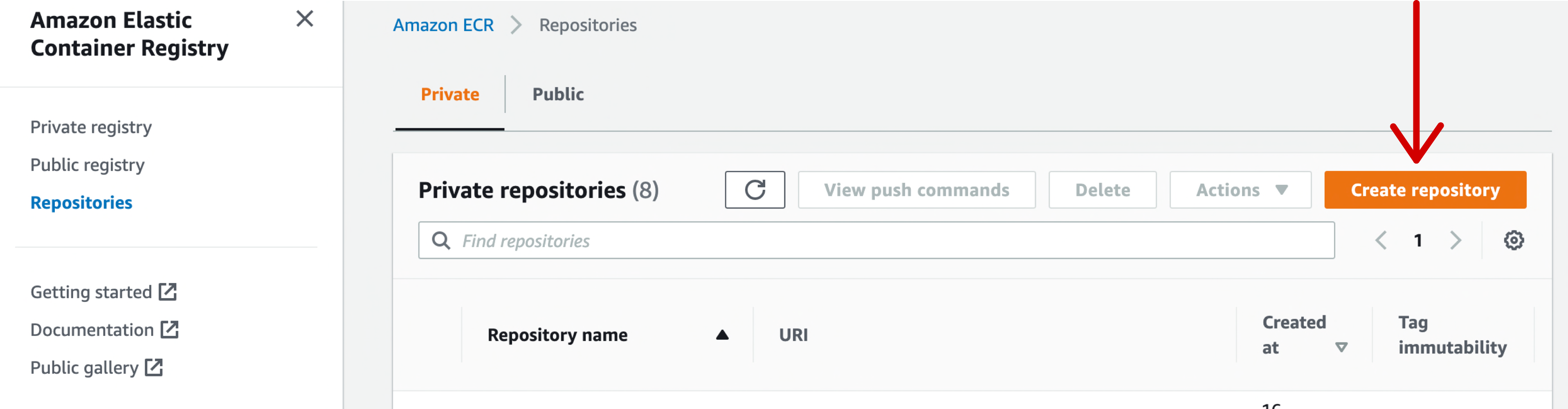
In order to make things simpler, make the repository name the same as the name of the Docker Image.
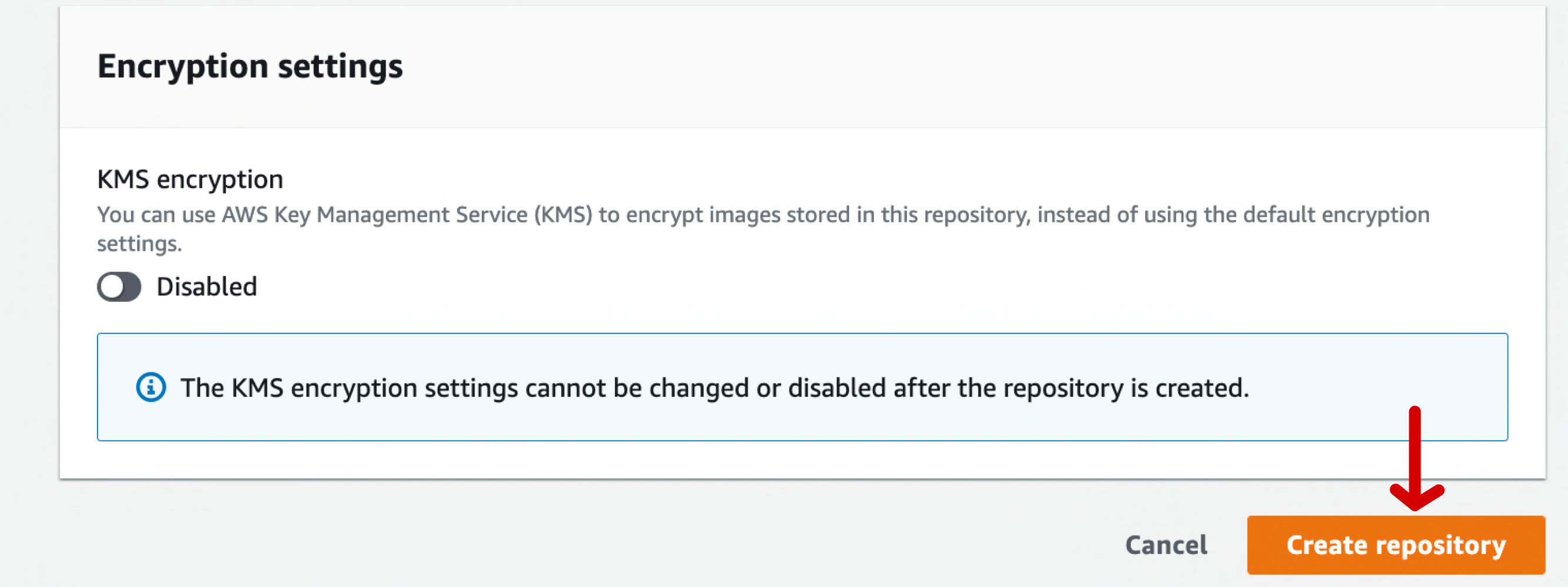
You can leave all the other settings as is.
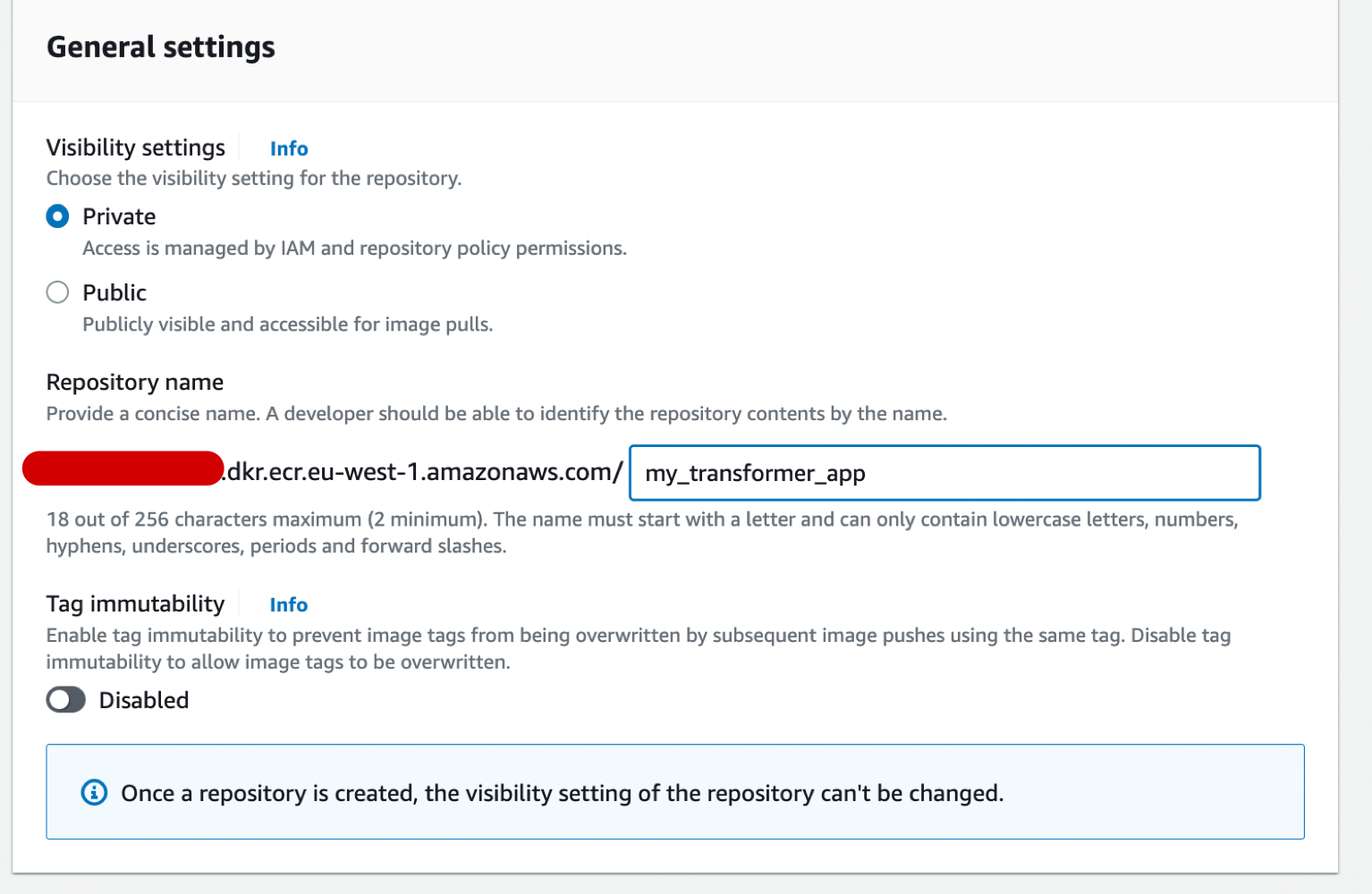
You can finish the creation of the repository by hitting the Create repository button.
Your repository is now up and running.
Finally, you simply have to hit the View push commands button and follow the instructions in order to push your image.
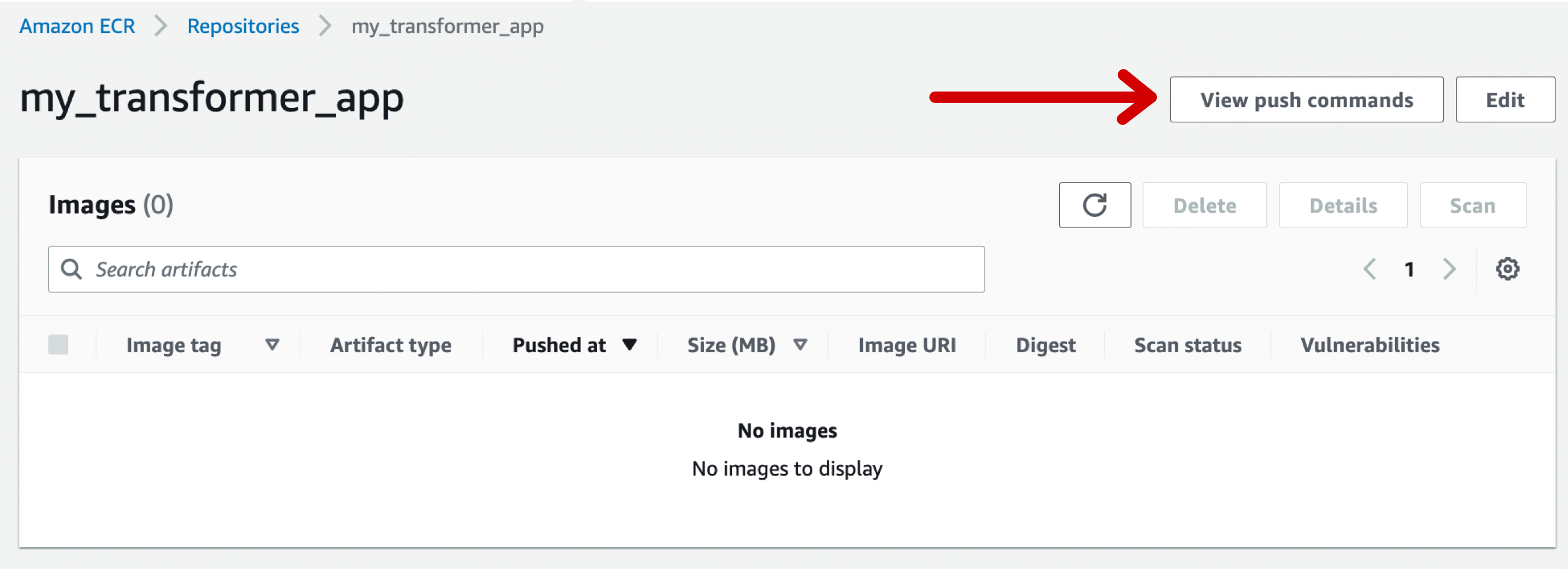
It may take some minutes before it's done, be patient !
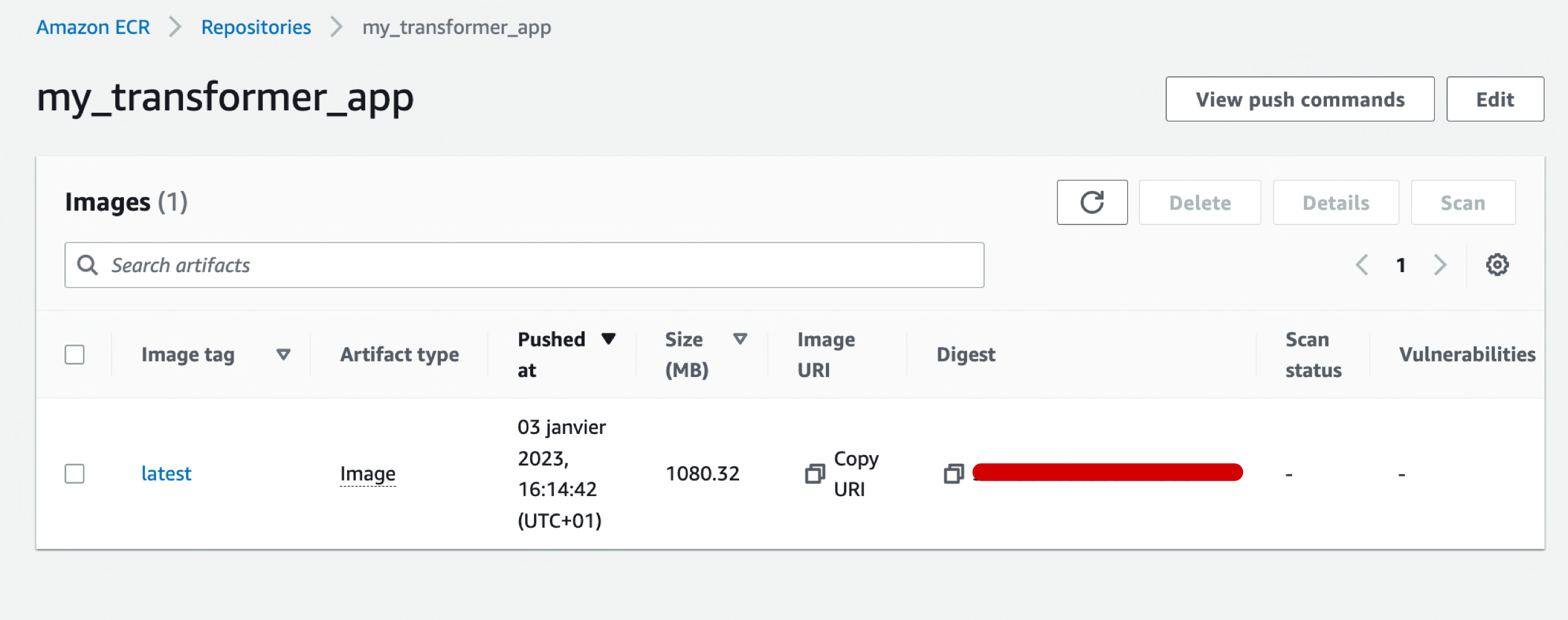
At the end of the process, when you refresh the page you can see your image with all its information displayed.
That's it for this part :)
Creating a function with Lambda takes only few minutes:
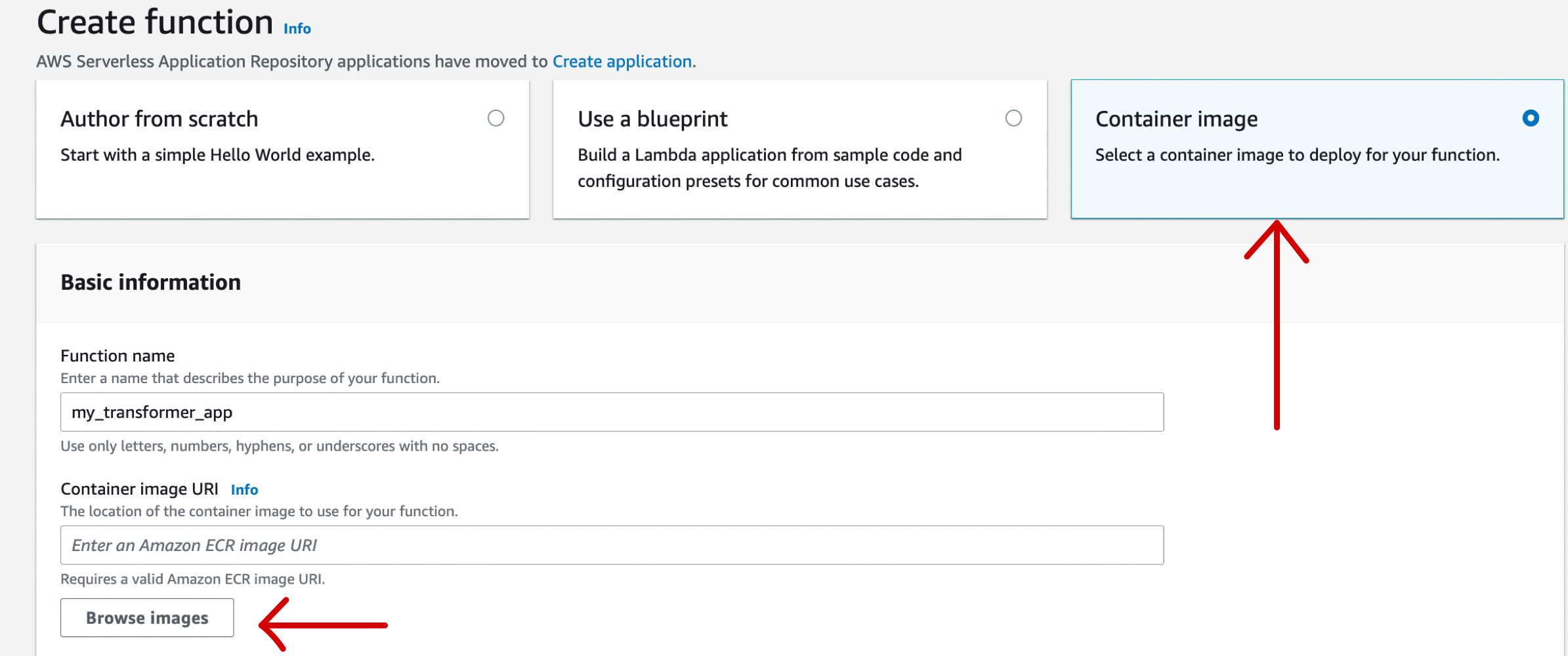
- Open the function page of the lambda console.
- Choose Create function
- Select Container image
- Enter a function name
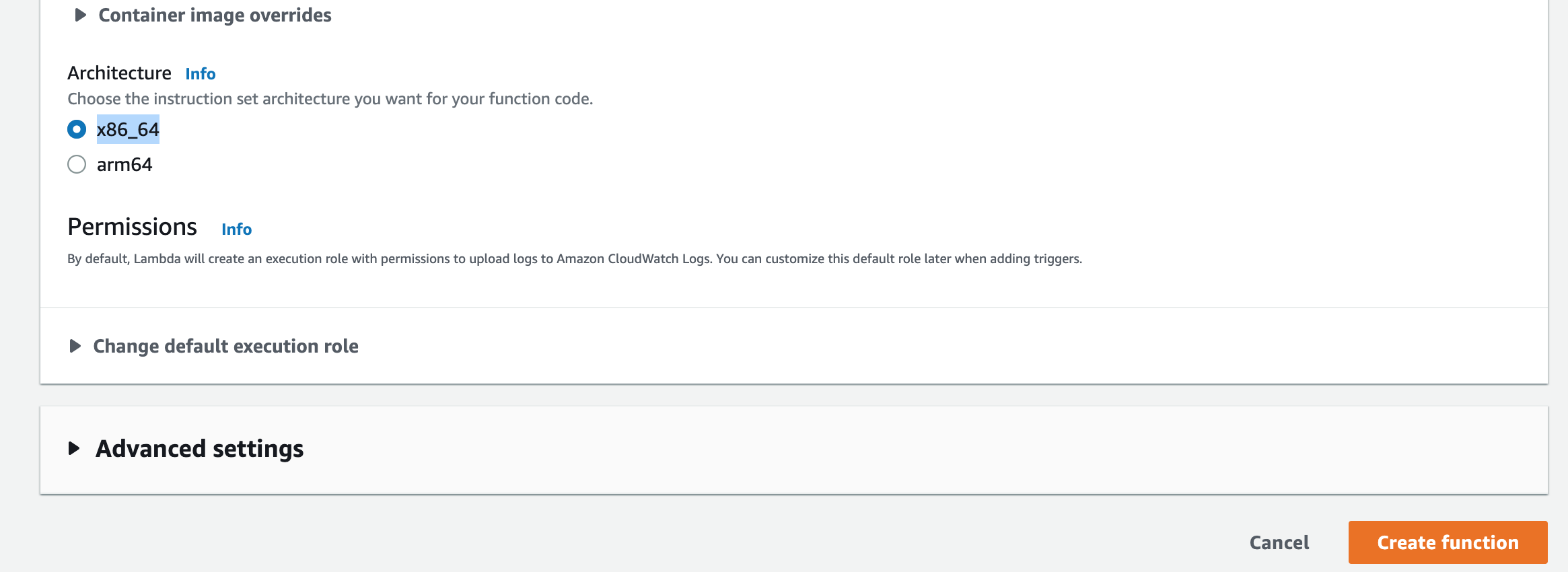
- Click Browse Images and choose the image you've just created
If everything went as expected, you should end up having this function overview.
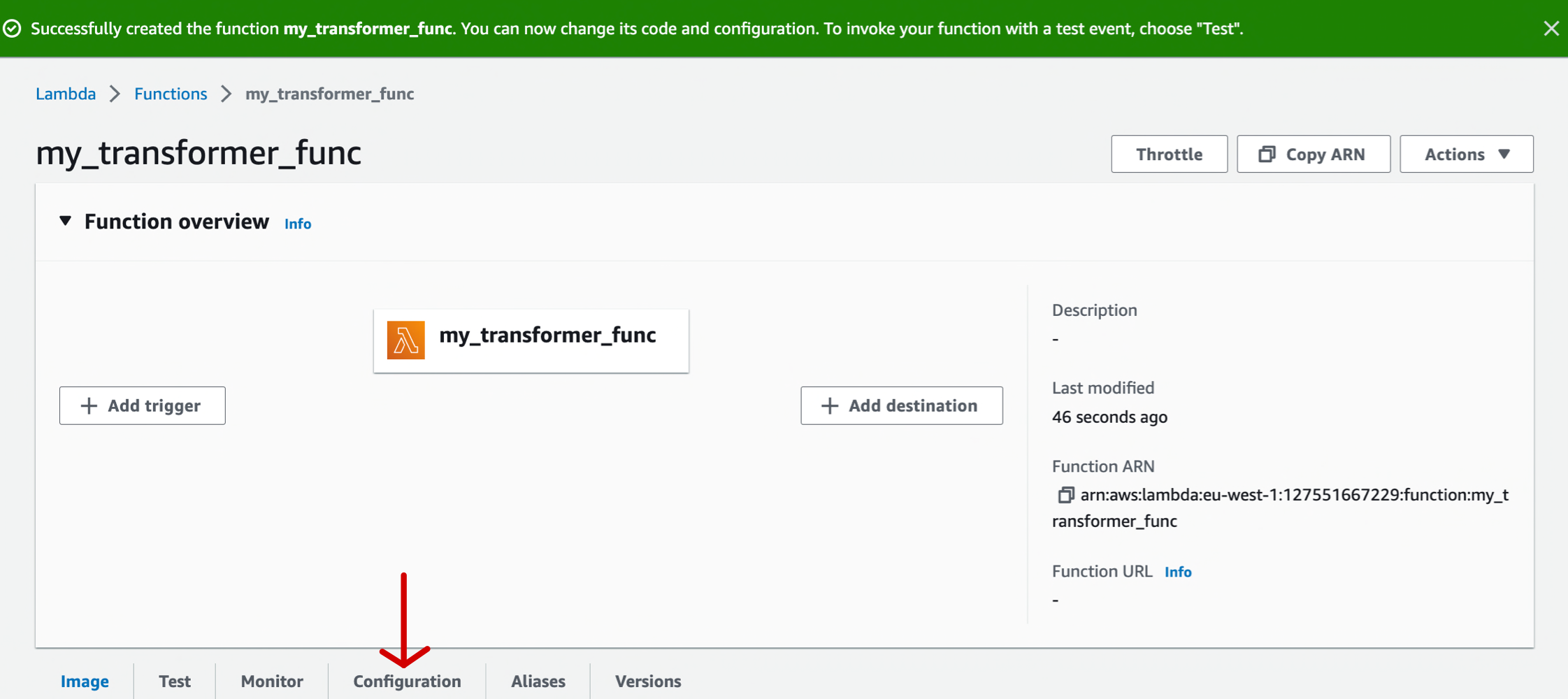
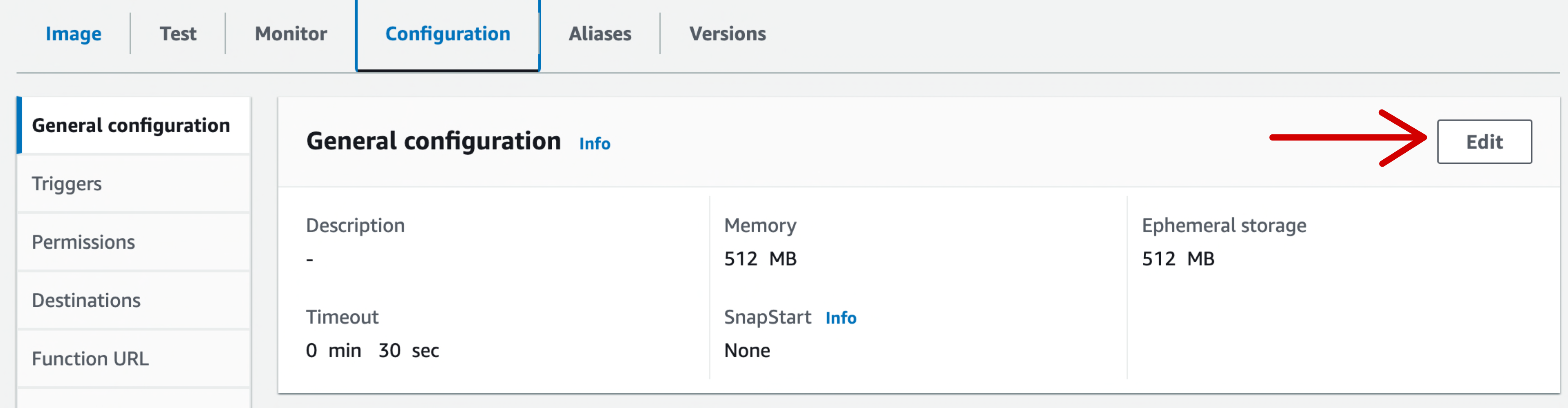
Now that your function is created, you have to configure the amount of ressources (CPU, RAM...) it needs to run properly.
- Click Configuration in the navigation bar
- Choose General configuration
- Then Edit
-
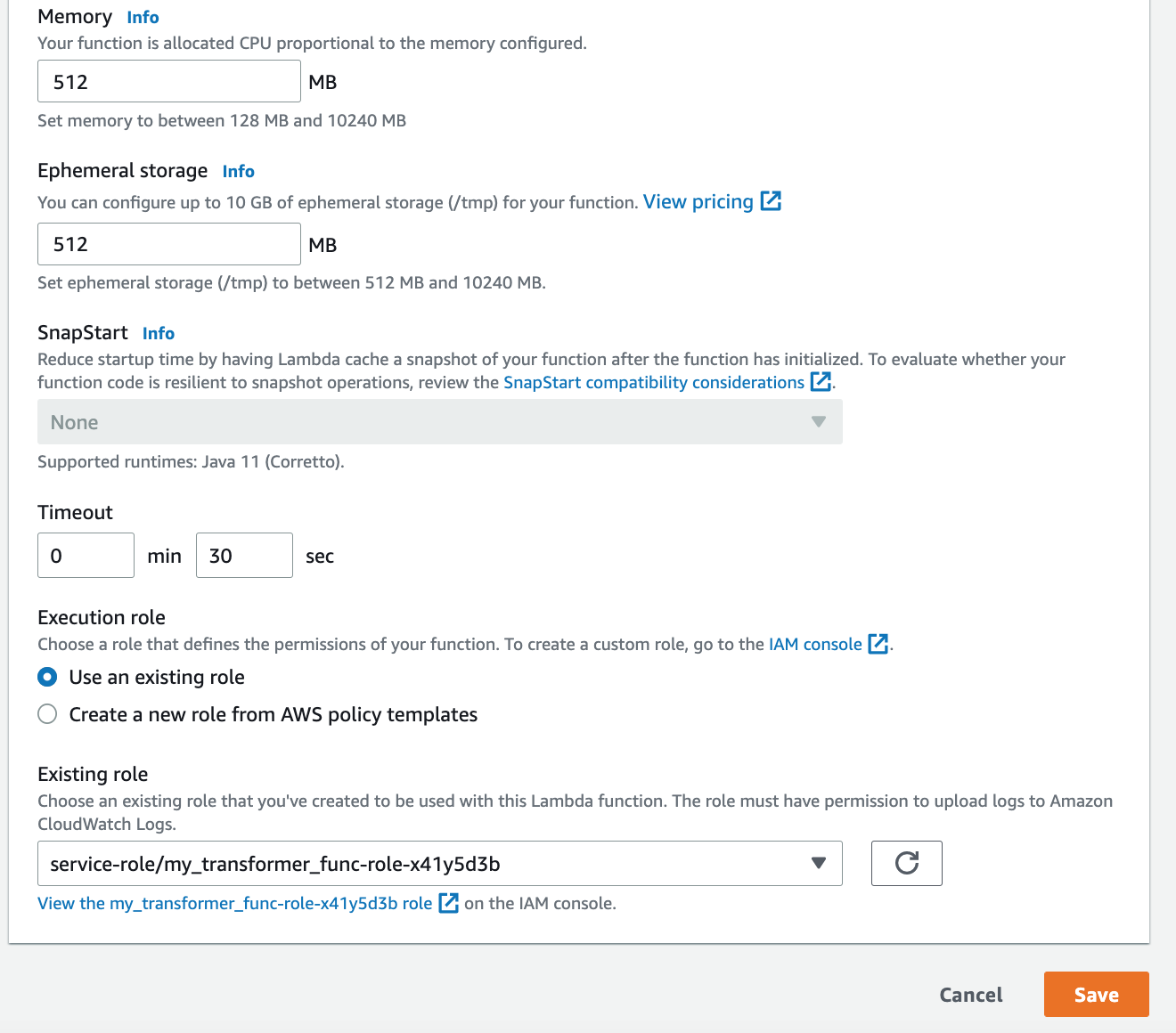
The heavier the sentence transformer model is, the more ressources and computation time it requires.
In my case, because the model is very tiny, 512 mb of RAM is allright, but sometimes you'll need 2,3 or maybe 4GB of RAM, only for the setence transformer model, I'm not even including other objects stored in the memory (other libraries, variables, data...). If you have no idea how much RAM you need, you can perform tests in order to establish it. As a very approximate rule of thumb, the RAM you need should be at least 4 x the size of your sentence transformer model. Keep in mind AWS let you allocate up to 10 GB of RAM. -
Note that the CPU is automatically set by AWS, the function is allocated CPU proportional to the RAM configured.
-
Tiemout is also important to configure, in my case setting timeout to 30 sec does the job but again you have to determine the value by performing tests.
-
You can leave Execution Role as is, configuring roles are useful when you need to give your function access to other AWS ressources (S3, Redshift, SNS ...) or in the contrary to limit them, which is not our case.
AWS provides a test interface. you can access it by clicking Test in the navigation bar.
A test event is always a JSON input to your function.
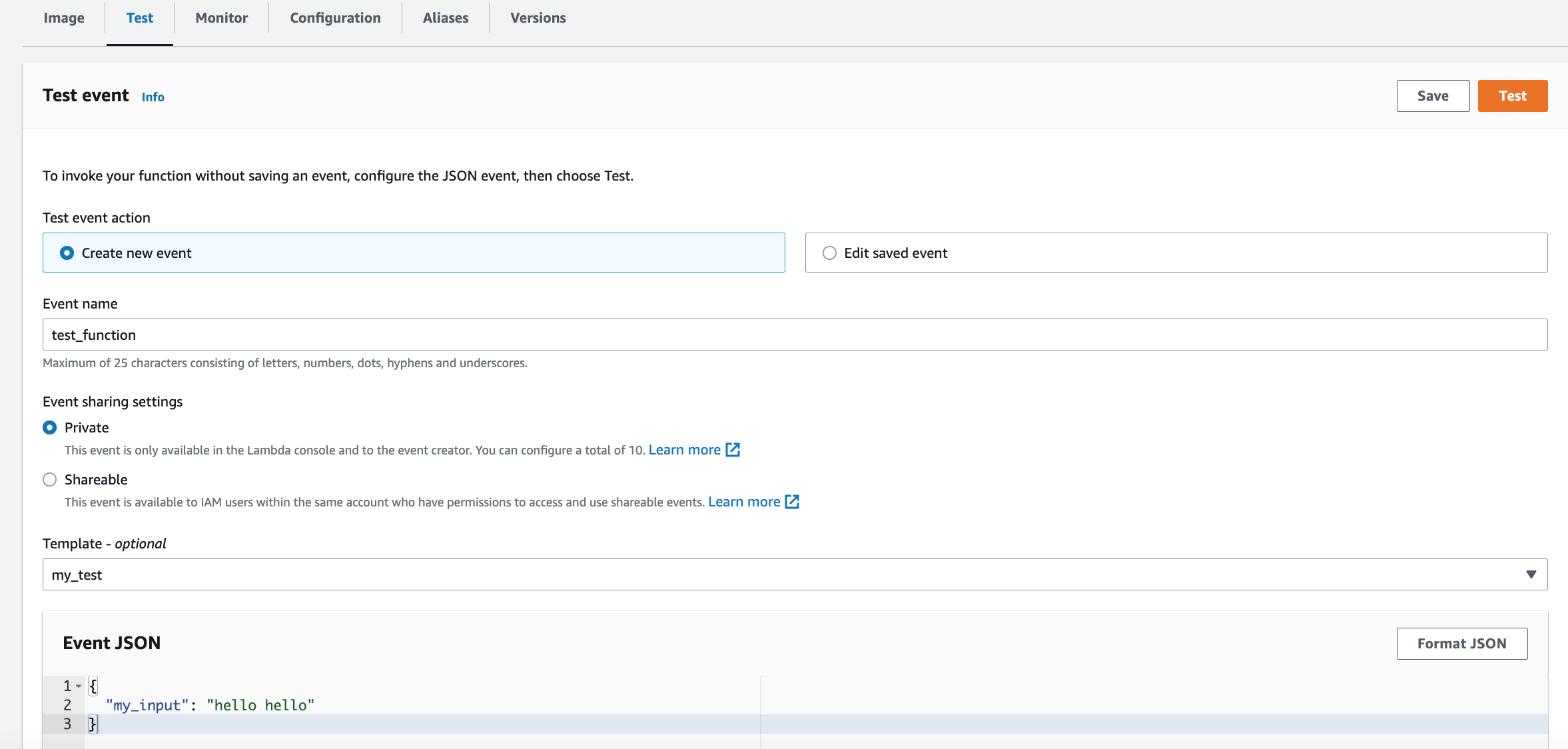
Let's perform a very simple test, just so we can make sure everything runs properly.
// Test event
{
    "my_input": "hello hello"
}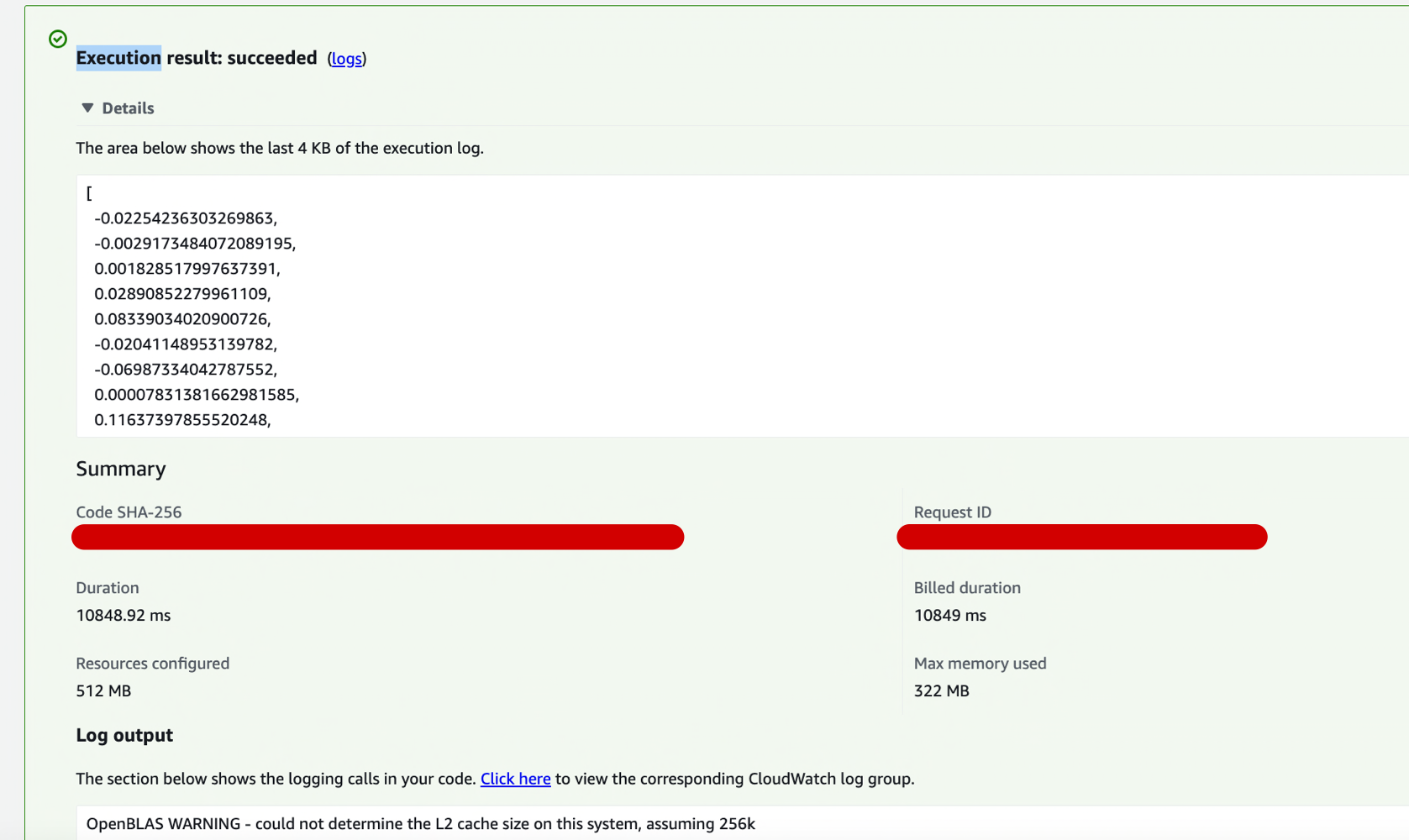
The function runs ! It returned an embedding of a size of 384, the max memory used is 322 MB and the computation time is 10 seconds.
Again, you can find all the files used in this blog post on my Github repo.
And voila ! Congratulations for making it this far 8-) 8-) 8-) ! I hope you've found this tutorial useful !